Learning how to create email accounts in cPanel allows you to set up professional, domain-branded email addresses like [email protected] without paying for expensive third-party software. Because most traditional web hosts include unlimited or bundled email hosting with their plans, configuring your inbox directly on your server is the most cost-effective way to handle business communications.
This guide walks you through setting up new inboxes, adjusting storage quotas, checking your webmail, and managing passwords using the official cPanel interface. Whether you use the standard Jupiter theme or the newer Meridian layout found on many of the best WordPress hosting providers, these core steps remain exactly the same.
What You Need Before You Start
Before you generate a new email address, you need to ensure your domain is properly connected to your hosting account so mail routes to the right place.
- cPanel login access: You must have access to your hosting dashboard through a provider such as HostArmada or InMotion Hosting.
- A connected domain name: Your domain must be added to your cPanel account as a primary, addon, or parked domain.
- Correct nameservers: Your domain must point to your hosting provider’s nameservers, or your MX (Mail Exchanger) records must point to your cPanel server.

ScalaHosting
The best all-around web host for performance, security, and support, independently owned and built around its own SPanel technology.
- SPanel control panel
- SShield security
- Managed cloud VPS
- Flexible scaling
- Independent ownership
* Introductory price. Renewal rates apply. Anytime money-back guarantee.
Check out my ScalaHosting Review and grab the latest discount on my #1 web hosting pick for 2026.
Step 1: Open the Email Accounts Dashboard
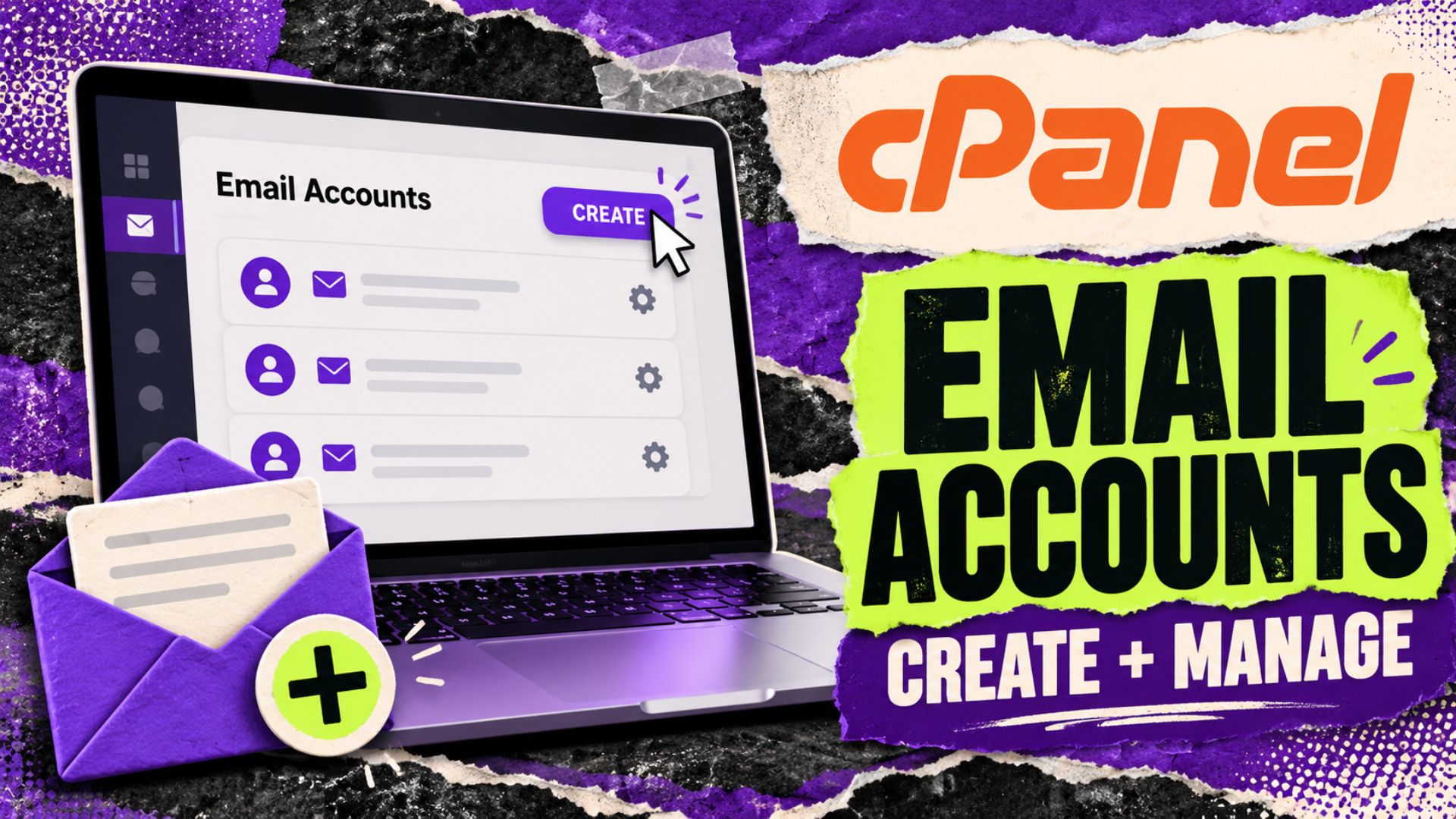
The Email Accounts section is the central hub for creating, deleting, and modifying inboxes. According to the official cPanel documentation, this tool manages all email addresses across every domain hosted on your account.
- Log in to your cPanel dashboard.
- Scroll down to the Email section on the main Tools page.
- Click the Email Accounts icon.
- If you use the Meridian interface, open the navigation menu, select Email, and click Email Accounts.
Step 2: Create a New Email Account
Once you are in the Email Accounts dashboard, you will see a list of any existing addresses (including the default system account). Creating a new inbox takes only a few seconds.
- Click the blue Create button on the right side of the screen.
- In the Domain dropdown menu, select the domain name you want to use for this email address.
- In the Username field, type the prefix for your email address (for example, type
helloto create[email protected]). - Under Security, choose Set password now.
- Type a strong password, or click the Generate button to have cPanel create a secure one for you.
Use the password generator
Always use the built-in password generator. Email accounts are frequent targets for brute-force attacks, and a random string of letters, numbers, and symbols is your best defense against unauthorized access.
Step 3: Set Your Storage Quotas and Finish
By default, cPanel assigns a specific storage limit to new email accounts to prevent a single inbox from consuming your entire web hosting disk space. You can adjust this before finalizing the account.
- Scroll down to the Optional Settings section and click Edit Settings.
- Under Storage Space, enter a specific number in megabytes (MB) or gigabytes (GB), or select the Unlimited radio button.
- Leave the Automatically Create Folders for Plus Addressing setting enabled (this helps organize incoming mail automatically if you use plus-aliasing).
- Leave the Send a welcome email with instructions to set up a mail client checkbox checked so you receive the IMAP and SMTP ports for your phone or desktop app.
- Click the Create button at the bottom of the page.
How to Check Your New Email via Webmail
You do not need to configure Outlook, Apple Mail, or Thunderbird immediately. cPanel includes a built-in webmail client called Roundcube that lets you check your inbox directly from your browser.
- Return to the Email Accounts dashboard in cPanel.
- Locate your newly created email address in the list.
- Click the Check Email button next to the account.
- cPanel will log you in securely and open the Roundcube webmail interface.
- To bypass cPanel in the future, you can visit your webmail directly by navigating to
https://yourdomain.com:2096and logging in with your email address and password.
How to Manage and Reset Email Passwords
If you or a team member forgets an email password, or if you need to suspend a compromised account, you can manage these settings without deleting the inbox. This is standard across all hosts we evaluate, such as the one in our Hosting.com review.
- Navigate to the Email Accounts dashboard in cPanel.
- Find the email address you want to edit and click the Manage button.
- To reset the password, type a new one in the New Password field under the Security section.
- To adjust storage, scroll down to Storage Space and change the quota.
- To suspend the account, scroll down to Restrictions and select Suspend for Receiving, Sending, or Logging In.
- Click Update Email Settings at the bottom of the page to save your changes.
ScalaHosting
The best all-around web host for performance, security, and support, independently owned and built around its own SPanel technology.
- SPanel control panel
- SShield security
- Managed cloud VPS
- Flexible scaling
- Independent ownership
* Introductory price. Renewal rates apply. Anytime money-back guarantee.
Check out my ScalaHosting Review and grab the latest discount on my #1 web hosting pick for 2026.
If you are exploring other hosting environments that bundle email hosting, you can also review the best cheap hosting plans or check our ScalaHosting review for managed VPS options that include their own intuitive email management tools.
Troubleshooting Common cPanel Email Issues
Managing your own email server requires occasional troubleshooting. If you followed the steps above but cannot send or receive messages, check these common problems and their fixes.
1. You Cannot Receive Incoming Emails
If you can log in to webmail and send outbound messages but nothing arrives in your inbox, your domain’s DNS records are likely incorrect. Use a free tool like MXToolbox to verify that your domain’s MX record points to your cPanel server. If your nameservers point to Cloudflare or another external DNS provider, you must manually copy your cPanel MX records into their dashboard.
2. Outgoing Emails Go to the Spam Folder
When you host your own email, your server’s IP reputation and DNS authentication determine inbox deliverability. Open the Email Deliverability tool in cPanel and ensure your DKIM, SPF, and PTR (rDNS) records all show a valid status. If they say “Action Required,” click Manage to install the correct authentication records.
3. Mail Client Fails to Connect (Timeout Error)
If Outlook or Apple Mail cannot connect to your cPanel email, you might be using the wrong ports or your ISP might be blocking the connection. Always use the Secure SSL/TLS settings: port 993 for IMAP (incoming) and port 465 for SMTP (outgoing). Never use port 25, as most internet service providers block it globally to prevent spam.
4. The Email Account Has Exceeded Its Quota
When an inbox hits its storage limit, the server bounces new incoming messages back to the sender. If someone complains they cannot email you, click Manage next to your email account in cPanel and check the Storage Space usage. You must either increase the allocated quota or log into Webmail to delete old messages and empty the trash folder.
FAQ
How many email accounts can I create in cPanel?
The total number of email accounts you can create depends entirely on your web hosting package. While the cPanel software supports unlimited accounts, budget hosts often restrict you to 5 or 10 inboxes, whereas premium providers allow unlimited accounts up to your total disk space limit.
Can I forward my cPanel email to Gmail?
Yes, you can easily forward incoming messages to external addresses. Open the Forwarders tool in cPanel, click Add Forwarder, enter your cPanel email prefix, and type your Gmail address in the destination field. Be aware that heavily forwarding spam to Gmail can occasionally harm your server’s sender reputation.
What is the difference between IMAP and POP3 in cPanel?
IMAP syncs your emails across multiple devices, meaning if you read or delete a message on your phone, it updates on your computer and in cPanel webmail. POP3 downloads the emails to a single device and typically deletes them from the cPanel server. IMAP is the recommended standard for almost all modern users.
Next Steps
Now that your professional email accounts are active, log in to Roundcube webmail to send a test message to a personal address and reply to it to confirm two-way delivery. If you plan to connect your new inbox to a desktop client like Outlook, look for the Connect Devices link in the Email Accounts dashboard to find your specific server hostname and port settings.