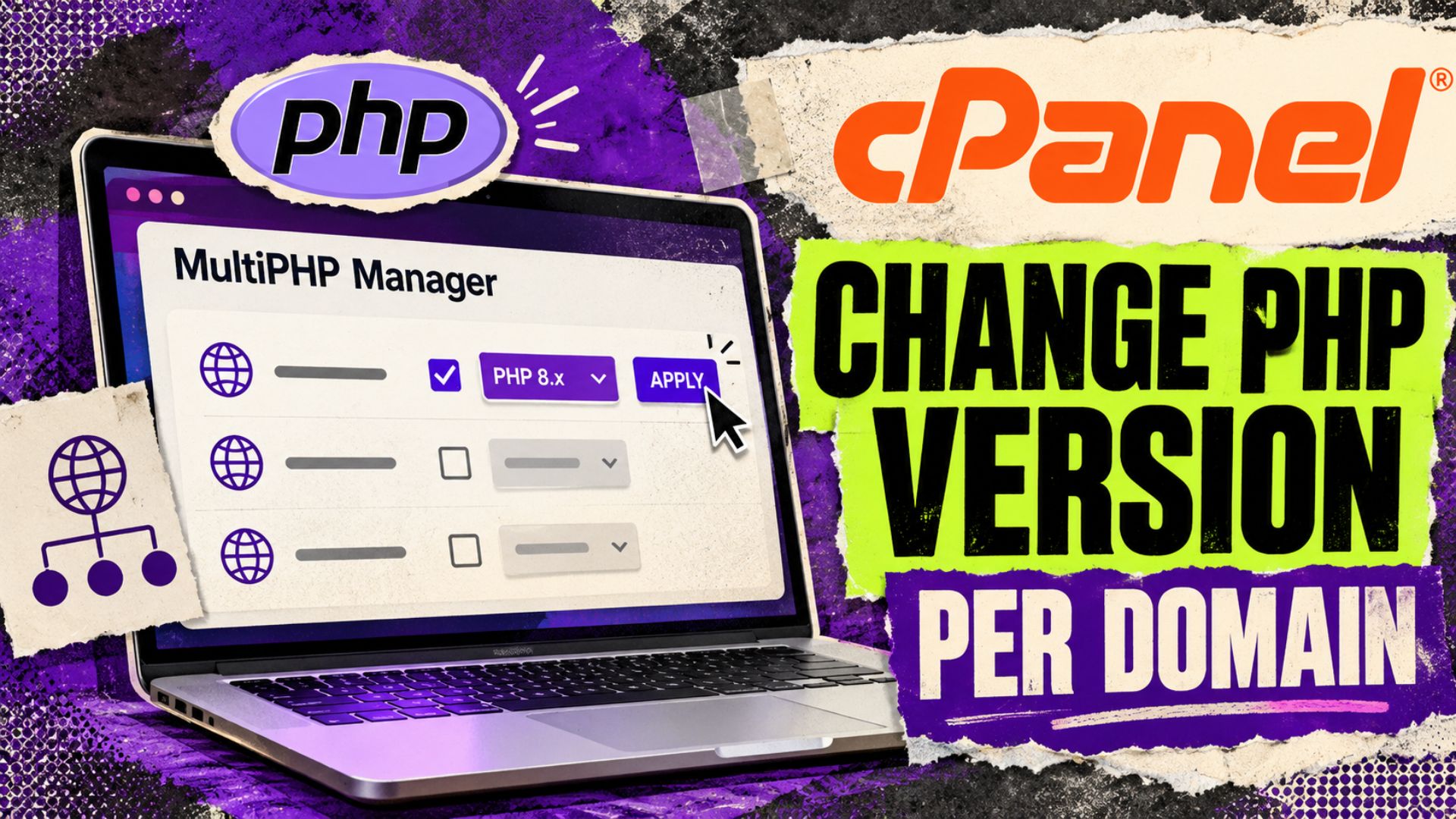
Learning how to use MultiPHP Manager in cPanel lets you change PHP versions per domain or subdomain in less than two minutes. When you run multiple WordPress sites on a single hosting account, different themes and plugins often require specific PHP releases to stay secure and run without fatal errors.
This step-by-step tutorial covers checking your site’s current version, assigning a newer PHP release to an individual domain, and handling common compatibility issues. Whether your site runs on our top WordPress pick from our HostArmada review or another standard cPanel host, MultiPHP Manager makes version switching straightforward.
What Is cPanel MultiPHP Manager and Why Do You Need It?
Historically, shared hosting accounts forced every website and addon domain on the server to share a single global PHP version. If one legacy plugin required an older release, your entire account was held back from upgrading.
MultiPHP Manager solves this by giving you granular control over your server environment:
- Per-domain version assignment: Run PHP 8.3 or 8.4 on your main WooCommerce store while keeping an older client site safely isolated on PHP 8.1 until its plugins are updated.
- Instant environment switching: Switch between PHP versions with a single click without editing server configuration files or breaking your command line access.
- Better security and speed: Upgrading from end-of-life PHP versions (like PHP 7.4 or 8.0) immediately patches known security vulnerabilities and speeds up execution times across WordPress core.
What You Need Before You Start
Before changing your domain’s PHP version in cPanel, gather a few basic items to ensure a smooth transition and prevent downtime if a plugin conflicts with the new release.
- cPanel login access: You need login access to a hosting account that features cPanel (such as HostArmada, Hosting.com, or the top providers featured in our best WordPress hosting guide).
- A complete website backup: Upgrading PHP can occasionally trigger fatal errors if an active plugin or theme is incompatible with modern PHP syntax. Always generate a full backup in cPanel or your backup plugin before making changes.
- WordPress admin access: Needed to inspect your Site Health screen and confirm which PHP version your installation currently runs.
Always take a full backup before changing PHP versions
Upgrading PHP versions can break legacy code or unmaintained plugins instantly. Always generate a fresh backup of your website files and database in cPanel before switching versions.
Step 1: Check Your Current PHP Version in WordPress
Before you open MultiPHP Manager, check what PHP version WordPress currently detects on your server. This gives you a clean baseline so you can verify the upgrade worked afterward.
According to official WordPress documentation, you can review your hosting environment directly inside the dashboard:
- Log in to your WordPress administrator dashboard.
- In the left-hand navigation menu, hover over Tools and click Site Health.
- Click the Info tab at the top of the screen.
- Click the Server accordion panel to expand it, and locate the row labeled PHP version.
Step 2: Open MultiPHP Manager in cPanel
In modern cPanel themes like Jupiter, the tool used to manage PHP versions across single domains, subdomains, and addon domains is called MultiPHP Manager.
Menu layout and icon positions can vary slightly depending on your hosting provider, but the tool is always located in the same dashboard section.
- Log in to your cPanel hosting dashboard.
- Scroll down to the Software section.
- Click MultiPHP Manager to open the domain management interface.
Step 3: Select Your Domain and Choose a New PHP Version
The MultiPHP Manager dashboard opens with a table listing every domain, addon domain, and subdomain hosted on your account, along with their active PHP version and server handler.
Based on official cPanel MultiPHP documentation, follow these steps to change the version for a specific site:
- Look at the domain table and find the checkbox next to the specific domain or subdomain you want to update (for example,
example.com). Click the checkbox to select it. (You can also select multiple domains if you want to upgrade them simultaneously). - Look toward the top-right corner of the table for the PHP Version dropdown selector.
- Click the dropdown menu and select the target PHP version (for example, php-8.3 or php-8.4, depending on what your host has installed).
- Click the Apply button right next to the dropdown menu.
- Wait a few seconds for a green success notification box to appear at the top-right of the screen confirming that the PHP version was updated.
Why individual subdomains can use different versions
MultiPHP Manager lets you assign separate PHP versions to subdomains (like staging.example.com) independently from your primary domain, making it easy to test a new PHP release on a staging site before updating your live production store.
Step 4: How to Check It Worked
Once MultiPHP Manager confirms the update was applied, verify that the new version is active on both your server and your WordPress installation.
Follow these quick verification steps:
- Open a fresh incognito or private browser window and load your website to make sure the front-end pages render normally without critical errors.
- Log back into your WordPress dashboard and navigate to Tools > Site Health > Info > Server.
- Confirm that the PHP version row now displays your newly selected release (such as
8.3.x). - If you previously adjusted memory limits in our guide on increasing the PHP memory limit in WordPress, double-check that your memory allocations carried over successfully after the version change.

ScalaHosting
The best all-around web host for performance, security, and support, independently owned and built around its own SPanel technology.
- SPanel control panel
- SShield security
- Managed cloud VPS
- Flexible scaling
- Independent ownership
* Introductory price. Renewal rates apply. Anytime money-back guarantee.
Check out my ScalaHosting Review and grab the latest discount on my #1 web hosting pick for 2026.
If your current hosting provider limits your PHP version choices or refuses to install modern releases like PHP 8.3 and 8.4, explore the fast, up-to-date cPanel environments in our InMotion Hosting review or our ScalaHosting review.
MultiPHP Manager vs Select PHP Version (CloudLinux)
Depending on how your hosting provider configures your cPanel server, you might see two different PHP management tools under the Software section. Understanding the difference prevents confusion.
| cPanel Tool | Primary Function | Where It Is Managed |
|---|---|---|
| MultiPHP Manager | Assigns different PHP versions to individual domains and subdomains on the same account | Global cPanel interface (Domain-level assignment) |
| Select PHP Version (CloudLinux) | Enables or disables individual PHP extensions (like imagick, curl, or bcmath) and customizes core php.ini directives | Per-account extension selector |
Troubleshooting Common PHP Version Upgrade Errors
Upgrading your PHP version is usually seamless, but if an active plugin or theme contains outdated code, you might encounter unexpected errors. Here is how to fix the four most common issues.
The Website Displays a Critical Error or White Screen of Death
If your site goes blank or shows a generic WordPress critical error immediately after changing your PHP version in MultiPHP Manager, an active plugin or theme is incompatible with the new PHP syntax. Return to cPanel MultiPHP Manager, switch your domain back to your previous working PHP version to restore site access immediately, and check your error_log file to identify which plugin caused the crash before attempting the upgrade again.
500 Internal Server Error After Switching Versions
A 500 Internal Server Error typically happens when an old directive inside your .htaccess file conflicts with the new PHP handler or version. Open cPanel File Manager, check your .htaccess file for deprecated PHP handlings (such as old AddHandler rules), restore your backup .htaccess file if needed, and verify that your PHP handler in MultiPHP Manager matches your host’s recommended setting (usually ea-php83 or lsphp83).
Certain Plugins or Media Uploads Fail After Upgrading
If your site loads fine but image uploads fail or certain features break after upgrading PHP, your new PHP version may be missing a required PHP extension (such as gd, imagick, or mbstring). Open Select PHP Version under cPanel Software, check the extensions tab, and make sure all required WordPress modules are checked and enabled.
MultiPHP Manager Changes Do Not Take Effect on the Front End
If MultiPHP Manager shows the new PHP version selected, but WordPress Site Health still reports the old version, a caching layer is likely serving stale server responses. Purge your server-side cache (such as LiteSpeed Cache or OPcache if accessible), clear any plugin and CDN caching layers, and wait a few minutes for the Apache or LiteSpeed worker processes to restart.
FAQ: How to Use MultiPHP Manager in cPanel
Can I use MultiPHP Manager to set a different PHP version for each subdomain?
Yes, MultiPHP Manager lets you check individual subdomains or addon domains separately from your main domain, allowing you to run PHP 8.4 on your primary store while testing a subdomain on PHP 8.2.
What is the best PHP version for WordPress right now?
PHP 8.2, 8.3, and 8.4 are the recommended versions for modern WordPress installations, offering maximum speed, robust security patches, and full compatibility with contemporary themes and WooCommerce plugins.
Does changing my PHP version in MultiPHP Manager delete my website files?
No, changing your PHP version only updates the server execution engine that interprets your PHP code. None of your website files, database records, or media uploads are modified or deleted during version switching.
What should I do if my host only offers outdated PHP versions?
If your hosting provider does not support modern PHP versions like 8.2 or 8.3, your site is exposed to security risks and slower performance. Consider migrating to a modern, developer-friendly host from our best WordPress hosting roundup.
Next Steps
Now that you know how to use MultiPHP Manager to change your PHP version per domain, keep your plugins updated and test future PHP upgrades on a staging subdomain first. To optimize your server environment further or compare top-tier hosting plans, explore the guides below.